11 devices / Ableton Live + Max for Live / early access
MPE under your fingers. Rhythm from what you play.
NoteFold, Attractor and Live Sampler respond to per-note pitch bend, pressure and CC74. MIDI Spew reshapes the notes while retaining expression. Add clocked audio chopping, a capture partner, mix controls and four local routing devices: eleven devices for an Ableton session.
NoteFold is the new name for Eightfold. Each device below has its own job, an interface view and a practical starting point. The setup guide follows the catalogue.
Latest download: 31 October 2026 · beta 3. Shimmer Chops 0.6 repairs silent processing on a fresh load, adds input/output metering and keeps its clock moving when Live is stopped; Sample Capture 0.6 and Live Sampler 0.7 improve playback levels and one-shots; Performance Master 0.3 adds diffuse effect tails. All eleven devices and their required scripts are included. Keep the scripts beside the devices.
Early-access Windows build, developed in Live 12.4.7 Suite with bundled Max. Live with Max for Live is required. Controller feel, macOS and other Live versions still need feedback.
MPE instrument
NoteFold MPE
Eight coupled voices: play drifting, interacting tones from notes, pressure and finger movement.
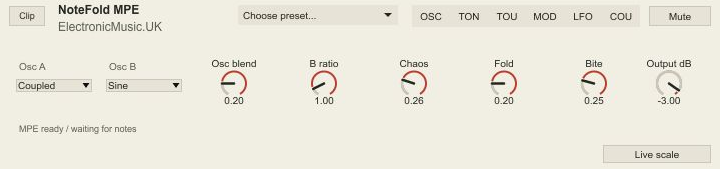
The problem: An evolving, interconnected drone is difficult to phrase and tune from an expressive keyboard.
What it does: NoteFold makes an eight-voice coupled network playable from MIDI/MPE. Oscillator choices, blend, fold, pair/group interaction and musical drift shape the voice; pressure, CC74 and per-note bend keep it under your fingers. A sharp strike and a held swell can be adjusted separately.
Inspiration: The brief began with the interacting voices of SOMA’s LYRA-8, then asked for pitched MIDI playing, MPE and more oscillator choices. NoteFold is an original digital interpretation of that idea. SOMA: LYRA-8’s interacting voice structure.
Start here: Start with LinnStrument sharp. Play a two-note interval, then add pressure to one finger and CC74 movement to the other. Bring Group energy up gradually.
Per-note bend, pressure and CC74, plus configurable zones and bend ranges. Eightfold was its earlier name.
MPE instrument
Attractor
A playable chaotic synth: move between a stable tone, folding harmonics and rough interaction.
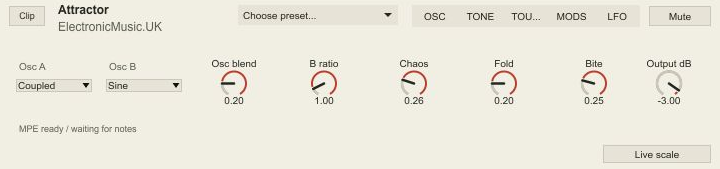
The problem: A chaotic sound can be exciting but difficult to articulate as a musical phrase.
What it does: Paired oscillator types, blend, ratio, nonlinear interaction and wavefolding sit alongside envelopes, a filter and an LFO. Assign pressure, slide and strike velocity to destinations and depths, so the initial note stays clear while the held sound changes.
Inspiration: Newfangled Audio’s Generate was a reference for the chaotic-oscillator and wavefolding approach. Attractor uses its own simplified digital synthesis and modulation design. Newfangled Audio: Generate’s chaotic synthesis and MPE.
Start here: Choose Reed breath or Soft glass. Keep pressure-to-amplitude modest, then assign pressure to a timbre destination before adding LFO depth.
Independent note bend, pressure and CC74; manager/member bend ranges, response curves and expression routing.
Live sampling / Part 1 of 2 / Audio track
Sample Capture
Part 1 of the live sampling pair. Put Sample Capture on the source audio track to record a voice, instrument or other incoming sound into a shared Slot. Part 2, Live Sampler, plays that sound from a MIDI track and can trigger capture remotely. Use the same Slot in both.
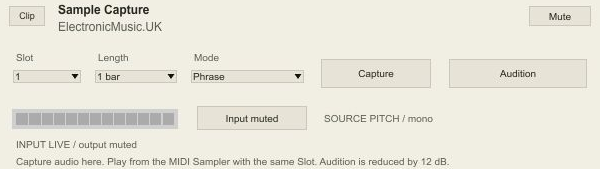
The problem: A source needs to stay live without necessarily being heard, and a MIDI player needs to trigger recording from another track.
What it does: Sample Capture receives the source continuously and records a chosen note/bar length into a shared Slot. Phrase capture and rolling/grab support different playing styles. Hear input controls the dry path; Audition previews the recorded source with optional Auto level and a separate Preview dB trim. The MIDI sampler can trigger the same capture remotely.
Inspiration: The audio half of the live sampler brief, designed around separate audio and MIDI tracks in Ableton.
Start here: Choose the audio input and Monitor In on its track. Leave Hear input off for silent capture, match the sampler’s Slot and press Capture in either device. Use Audition to check the recorded source.
Captures audio for the MPE Live Sampler. One Capture writer per Slot; audio is held in RAM until you record or export it.
Live sampling / Part 2 of 2 / MIDI track
Live Sampler
Part 2 of the live sampling pair. Put Live Sampler on a MIDI track to play the sound recorded by Part 1, Sample Capture, as pitched notes, chops or harmonies with MPE expression. Match its Slot to the capture device; you can start a capture here without leaving the MIDI controller.
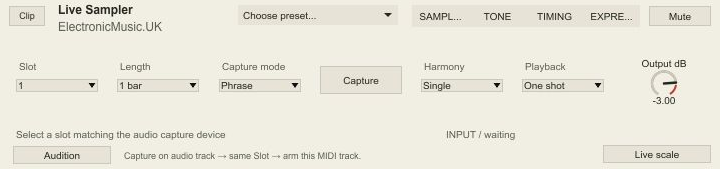
The problem: An audio input and a playable MIDI instrument need different tracks in Live; capturing a phrase should not require leaving the MIDI controller.
What it does: Live Sampler remotely triggers Sample Capture through a shared Slot. The captured sound becomes a playable instrument with root estimation, scale-safe chord harmonies, reverse, optional start trimming, conventional resampling and a granular stretch mode for musical lengths.
Inspiration: An original response to the live vocal/sampling brief: keep the source receiving audio, capture on demand, then play the result from MIDI.
Start here: Put Sample Capture on the source audio track and this instrument on a MIDI track. Match Slot 1, arm the MIDI track, press Capture, wait for READY and play. Audition previews a note without starting Live.
Pitch, pressure and CC74 expression are applied to the played sampler voices. Root estimation is monophonic; Harmony creates scale-degree chords.
MPE-aware MIDI effect
MIDI Spew
Turn one played phrase into clocked echoes, held-note chops or an arpeggio before any instrument.
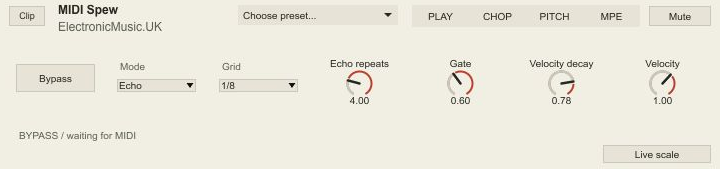
The problem: Repeating a chord, changing its rhythm and adding octave movement usually means editing another MIDI clip.
What it does: MIDI Spew transforms incoming notes in real time. Echo, Chop held and Arpeggiate share musical grids, gates, velocity decay and repeat limits. Patterns, small/big lengths, chance, drift and scale-degree or octave weights produce variations from the notes you actually play.
Inspiration: Hardware MIDI repeaters and arpeggiators, combined with the clocked chopping idea behind Shimmer Chops. This is an original MIDI workflow.
Start here: Place it before an instrument, switch Process on and choose a small repeat count. Play a short chord with Echo, then try Chop held and change Pattern. Panic clears generated notes.
Generated notes retain member-channel expression within a bounded voice budget. Drum mode keeps the original pad pitches.
Stereo audio effect
Shimmer Chops
Cut live audio into clocked slices; drift, pitch and cross-feed those slices into two loopers and three FX paths.
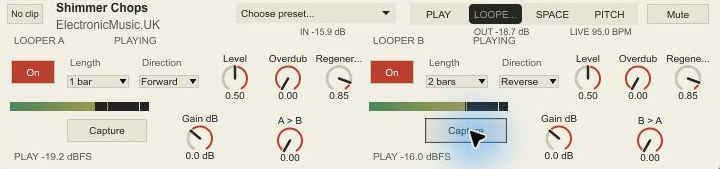
The problem: A static delay repeats the same timing and pitch relationship; free granular motion can drift away from the music.
What it does: Small/big slice patterns and weighted original/+12/−12 pitches stay on a musical clock. Drift cycles use notes and bars, while Swing offsets onsets around the grid. Two reversible loopers, delay, reverb, shimmer and controlled cross-feeds develop the captured signal. FX Lift adds one-knob compression and level push.
Inspiration: The original brief was rhythmic signal chopping with musical drift, scale-safe pitch choices and interacting loops. The emphasis is on turning an incoming performance into another rhythmic layer.
Start here: Use it after a sounding source, or on a return with Mix at 1. Turn up that source track’s send and choose Tight clock. Check IN and OUT above the controls. LIVE follows playback; LOCAL keeps processing at the Set tempo while Live is stopped. Then try Half-note bloom or Octave rain. Return-track Clip is intentionally inactive.
Processes the stereo audio produced by an MPE instrument. Pitch weights and Live scale select musical intervals for slices.
Stereo audio effect
Performance Master
One compact set of recordable performance controls for the mix: filter, resonance, smile, motion, drive and level.
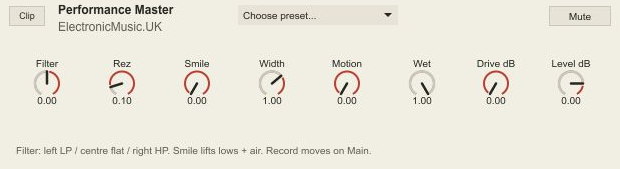
The problem: A mix-wide gesture can require jumping between several devices while you are playing.
What it does: A bipolar filter moves from low-pass through a flat centre to high-pass. Resonance, Smile, Width, Motion, wet amount, Drive and Output provide a small performance surface with named controller banks. Put it on Main or a bus and record its parameter moves with Live’s automation.
Inspiration: An original live-performance control strip built around the requested filter/rez first and drive/level last convention.
Start here: Begin at the filter’s centre position with modest drive. Record a slow filter move and a little Smile, then listen at a matched output level.
Audio processing for the combined mix. Use Live’s track/Main automation to record moves; keep a separate final limiter in your output chain.
Audio router / Part 1 of 2 / Source
Audio Send
Part 1 of the audio router. Place Audio Send at the point in the source chain you want to tap. It sends that audio to Part 2, Audio Receive, elsewhere in the Set. Match their Bus labels and use the receiver’s source/tap selectors to choose the source.
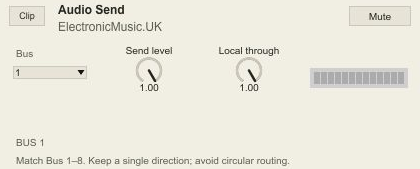
The problem: You want audio from a particular point in a chain elsewhere in the Set without moving the original source.
What it does: Audio Send exposes a local auxiliary audio path with a Bus label and local-through control. Its matching receiver can select this source/tap. Keep dry audio here, or mute local through when the destination is the intended listening path.
Inspiration: A paired patch-cable workflow inside Live, with numbered 1-to-1 connections.
Start here: Put Send at the desired point, select Bus 1 and place Audio Receive at the destination. Match the bus and confirm its source/tap selectors.
Carries rendered audio. The routing is local to the Set; use a single direction to avoid feedback.
Audio router / Part 2 of 2 / Destination
Audio Receive
Part 2 of the audio router. Place Audio Receive in the destination audio path to receive Part 1, Audio Send. Match the Bus and source/tap, then balance the received audio against the destination’s local signal.
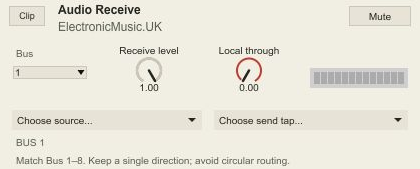
The problem: A destination needs a chosen source from elsewhere in the Set while retaining control of its own input.
What it does: Audio Receive selects the Send’s device and auxiliary tap, with separate received and local-through amounts. Matching Bus labels make a pair easy to identify; source/tap selectors handle cases where automatic matching needs help.
Inspiration: The receiving half of the numbered, local audio patch-cable pair.
Start here: Match the sender’s bus, choose its source/tap if needed and raise the received amount. Keep the receiver’s output out of the same sender’s input path.
Carries the source’s combined audio. Use one sender per bus and check the meters at both ends.
MIDI router / Part 1 of 2 / Source
MIDI Send
Part 1 of the MIDI router. Place MIDI Send after the MIDI processing you want to share. It sends notes and expression to Part 2, MIDI Receive, on a matching numbered Bus, with separate control of the local through path.
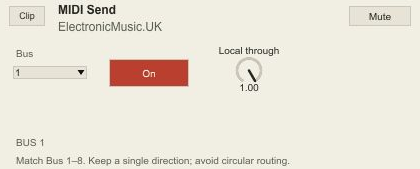
The problem: A generated or performed MIDI part needs to reach another instrument path without duplicating the part.
What it does: MIDI Send forwards MIDI through a local numbered bus while its through control determines the local path. It lets the destination receive the played notes and expression at a deliberate point in the processing chain.
Inspiration: The MIDI equivalent of the local Send/Receive patch-cable pair.
Start here: Put Send after the MIDI processing you want to share, choose Bus 1 and use MIDI Receive before the destination instrument.
Forwards note and expression messages. Match the receiving instrument’s MPE zone and bend ranges.
MIDI router / Part 2 of 2 / Destination
MIDI Receive
Part 2 of the MIDI router. Place MIDI Receive before the destination instrument to receive notes and expression from Part 1, MIDI Send. Match the Bus number, then choose whether to hear only the routed MIDI or merge it with local MIDI.
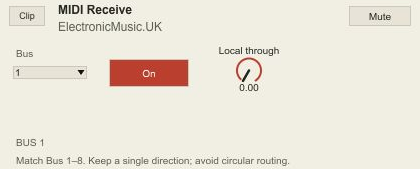
The problem: An instrument needs the transformed MIDI from another chain rather than another copy of the original clip.
What it does: MIDI Receive listens to its selected local bus and feeds the following instrument. Received/local through controls support a deliberate merge or a single source. Use the matching Send after MIDI Spew to share its generated part.
Inspiration: The receiving half of the local MIDI patch-cable pair.
Start here: Match the sender’s bus and enable the received path. Start with local through off if you need to hear only the routed part.
Receives notes, bend, pressure and CC74. Keep a single routing direction and one sender per bus.
Setup and controls
Install
Close Live before replacing an existing installation, then reopen your Set. Captured samples are held in RAM: record any sample you want to keep first.
- Extract the ZIP. Keep the entire ElectronicMusic UK folder together:
its
.amxddevices need the neighbouringemuk-*.jsfiles. - Put that folder somewhere permanent, then add it with Add Folder in Live's browser. Drag a device from that folder onto a suitable track.
- Use Live with Max for Live available. Development has been on Windows, Live 12.4.7 Suite and its bundled Max 9. Other Live versions and macOS are not verified. No external Max packages are required.
- Start with a modest output level. The devices' Mute switches silence their own processing; they are separate from track activation and Main volume.
The scripts and DSP run locally. No account, network service or subscription is needed for the devices. Captured audio stays in local memory. The public download contains no private Live Set, recordings or Ableton factory devices.
The 30 October UI revision uses matching 12 pt header text, with the device name bold and ElectronicMusic.UK in regular weight. Clip display updates reuse their Live API handles and skip unchanged redraw messages. Device controls initialise from Live's device-ready signal. Sustained live-performance validation remains pending.
The Clip button never starts or stops Live
The small button at the far left controls a Session clip on its own track. It stops the currently playing clip; with Live still running it can relaunch the last clip, or the highlighted clip if that clip belongs to the same track. It respects clip/global launch quantisation. It restarts rather than pauses at an exact audio position.
Start Live from Live or Push first. The device refuses to fire a clip while Live is stopped because doing that could implicitly start the whole transport. Return and Main tracks have no Session clips: their button has no effect. Arrangement playback is controlled in Live. Clip control is not sample audition.
Capture a sound, audition it, play it from MIDI
The sampler has two parts. Sample Capture is an audio effect. Live Sampler is an instrument on a MIDI track. The Slot number links them; it is not a track number. One capture source per Slot; up to eight Slots are available. Use the branded Capture and Sampler together: they use a separate buffer namespace from the earlier unbranded devices.
- Put EMUK Sample Capture on the source audio track. Choose the correct Audio From input, and set the track's Monitor to In so the device continuously receives audio. A moving meter confirms that input is live.
- Leave the device's Hear input switch off if you want silent capture. That mutes only its dry-through path; the input still reaches the recorder. Turn it on if this track is also your normal live vocal channel.
- Put EMUK Live Sampler on a MIDI track. Select the same Slot in both devices. Arm the MIDI track, choose the controller input, and use Monitor Auto (or deliberately use In). MIDI needs an armed/monitored track.
- Choose a length and Forward capture. Press Capture in the MIDI device to record remotely from the audio device. Play or sing during that window. Wait for READY. The audio device's Capture button does the same job locally.
- Audition on Sample Capture plays the source once on the audio track, independently of Hear input. Auto level provides bounded playback makeup targeting a −6 dBFS captured peak; Preview dB adds an audition trim. The sample itself is unchanged. Audition on Live Sampler plays a note through the sampler's current sound, harmony and timing settings. Press again to stop the preview. Neither controls Live's clock.
- One-shot plays the captured phrase after note-off; Loop follows held notes. Play MIDI notes. The detected source pitch becomes the sample's estimated root; use Manual MIDI root if detection is wrong. Note 60 is MIDI middle C, displayed as C3 in Live's naming. This is single-note root detection, not polyphonic chord analysis or formant-preserving vocal synthesis.
Rolling / grab continuously fills the chosen window. Capture freezes the current window; a MIDI note also grabs it. The sampler resumes rolling after the last held note and its release. Capture-device Audition temporarily grabs the rolling window and resumes rolling when audition ends. Avoid two Capture devices writing to the same Slot.
RAM, not permanent storage: the sample buffers are not embedded in the Live Set. Record the sampler's audio onto an audio track to keep a take. Reopening/reloading devices may clear a captured sound.
Sampler pages
- Capture: Slot, length, mode, remote Capture, harmony, one-shot/loop and output. Harmony supplies scale-degree triads or sevenths; it does not detect incoming chords. Use Live scale to take the root/scale from the Live Set.
- Pitch: automatic/manual root, attack/release, tone and pressure depth.
- Time: Resample changes pitch and duration together. Stretch uses grains to separate note pitch from a target note/bar length. Grain size changes texture; it is not transparent vocal time correction. Free speed applies when a fixed musical stretch length is not chosen. Reverse is available.
- MPE: member/manager bend and expression. Auto trim start skips detected leading silence at playback; off preserves the initial gap for timing. It does not destructively rewrite the buffer.
MIDI Spew — MIDI effect before an instrument
Switch Process on; Bypass passes the incoming MIDI. Echo repeats each strike. Held chops repeat held notes; the arpeggiator orders a held group. Grid sets the musical spacing. Gate shortens notes, velocity decay fades repeats, and output velocity scales them. The Chop page has patterns, chance, small/big lengths, their balance and drift amount/cycle. Pitch supplies relative weights for original/+12/-12 and scale-degree steps. Drum mode preserves pad pitches. Dry notes controls original notes independently of the generated part.
MPE copies retain member-channel expression with bounded voice allocation. The MPE page sets the voice budget, latch and behaviour when Live is stopped. Stop/Panic clears owned generated notes. Start with a small repeat count; complex chords multiplied into long repeats can become musically dense.
Shimmer Chops — audio effect
Insert it after an instrument/audio source, or use it on a return with Mix fully wet. It chops the actual input; it does not generate an input signal. The always-visible IN meter measures the incoming audio before the DSP; OUT measures the processed audio. IN silent: check the source, monitoring and send. IN active / OUT silent: check Mute, Mix and effect/loop levels. LIVE means the clock follows Live's playing transport; LOCAL keeps chops and loop playback moving at the Set tempo while Live is stopped. When capturing after a silent load, send a sound first, then press each loop's Capture button.
- Play: clock grid, patterns, density, small/big chops and big-chop chance. Drift time uses note/bar units; sync locks the motion cycle to Live. Swing shifts chop onsets around the grid. Free mode uses the free-time control. Cross-mod changes the relationship between the two drifting paths. Lift is the one-knob compression/level push for the mixed effect signal.
- Loops: enable/capture A and B, choose their lengths and directions, then set Level, Gain dB, overdub and regeneration. Each loop has a playback meter, dBFS readout and OFF/ARMED/RECORDING/PLAYING status. Gain dB ranges from −12 to +24 dB (default 0), outside the tape write/cross-feedback paths. A→B and B→A remain separate. Capture replaces the loop on the next beat boundary; selected musical lengths follow tempo/signature. The meters show playback after Level and Gain, before shared effects/output, with local −1 dBFS protection. Global Scale is on PITCH.
- FX: delay, reverb and shimmer each have amount, regeneration/decay and a limiter ceiling. Directed cross-feeds warn before first enabling each path. Start with one route at a low amount; Mute stops this device's output.
- Pitch: relative original/+12/-12 weights, scale-degree chance/interval, manual scale, tone and output. Live scale uses the Set's scale-safe intervals; the effect does not analyse each incoming note and retune every audio slice.
Attractor and NoteFold — MPE instruments
Attractor offers paired oscillator types, blend/ratio, nonlinear interaction, fold and bite, then tone/envelope, touch, modulation and LFO pages. NoteFold adds an eight-voice coupled network. Both have sharp initial attacks, separate pressure response and explicit destinations/depths for expressive modulation. Changing oscillator Blend should change the oscillator balance, not Device On.
For a LinnStrument lower zone, use channel 1 as manager and channels 2–16 as members; match member bend to ±48 semitones and manager bend to ±2. Match the device's zone and ranges to the controller. X is bend, Y is CC74, Z is pressure. Use a lower pressure-to-amplitude depth for an immediate strike; increase it for held-note swells. Synth velocity/pressure curves and smoothing are separate. Global scale constrains starting pitches; continuous MPE bends stay expressive.
Performance Master — audio effect
Filter is bipolar: left low-pass, centre flat, right high-pass. Rez controls resonance; Smile lifts lows and air; Width changes stereo spread. Motion, wet amount, drive and output provide performance changes. Filter and Smile raise modulated, diffuse delay/reverb/shimmer tails. It is not itself the complete limiter/master rack from the private performance set.
Anywhere Audio / MIDI Send and Receive
Use a matching Send/Receive pair with the same Bus 1–8. The audio pair uses Live's auxiliary device ports, with source/tap selectors on Receive if automatic matching needs help. Send can keep or mute local through. Receive can mix its local signal with the received signal. The MIDI pair carries notes and expression through the matching local bus. Use one sender per bus, and avoid connecting a receiver back into the same sender. Bus numbers are local routing labels, not hardware MIDI channels or cross-computer network connections.
Push, macros and automation
Select the actual custom device in Device mode for its named banks, then use bank/page buttons. The private set's outer racks retain Filter, Rez, four sound controls, Drive and Level. Mapped inner controls are grey because the rack macro owns them. Refine and save a named rack variation for a useful sound.
Return and Main automation can be recorded directly in Arrangement with Automation Arm and Arrangement Record. Launch quantisation/grid affects the musical launch points. The custom Clip button does not arm recording or turn Arrangement playback into a separate per-track transport.
If something is silent
- Capture meter moves, no dry audio: Hear input is off; this is intentional for silent capture. Audition the recorded sample or turn Hear input on.
-
Sampler is silent: confirm a ready sample, matching Slots, the MIDI track armed/monitored, correct rack chain selected and a useful output level.
-
No clip / Host off: use Live/Push to run transport, and select/fire the intended Session clip on this device's track. Returns/Main have no clips.
- Wrong pitch / extra note: start with Harmony = Single, Free speed = 1 and a correct automatic or Manual MIDI root. Check MPE bend ranges and any upstream MIDI effect: MIDI Spew can add octave notes even in Single mode. Root detection is monophonic.
- Routing pair silent: match bus, confirm enabled/level and check the audio Receive source + auxiliary send tap. Do not enable feedback to diagnose it.
- Scripts missing: re-extract and keep the
.jsfiles beside the devices.
Early access and feedback
This is a work in progress. The latest changes have focused native Max/Live audio checks and MIDI regression checks, including Shimmer playback gain and bounded output under high feedback. Sustained show-length and physical controller validation remains open. Software checks do not establish compatibility on every machine or reliability for an entire show. The private Plugines catalogue is prepared without automatic playback/test clips and is not included in this download.
Please post feedback at The Exchange with the device/version, Live/Max/OS, controller, preset, and a short sequence of steps. Tell us what you expected, what happened, and any useful musical result. For sound examples, share only audio you have permission to publish. Do not post private Live Sets or crash dumps containing personal details.
ElectronicMusic.UK · Listen. Modify. Perform.